

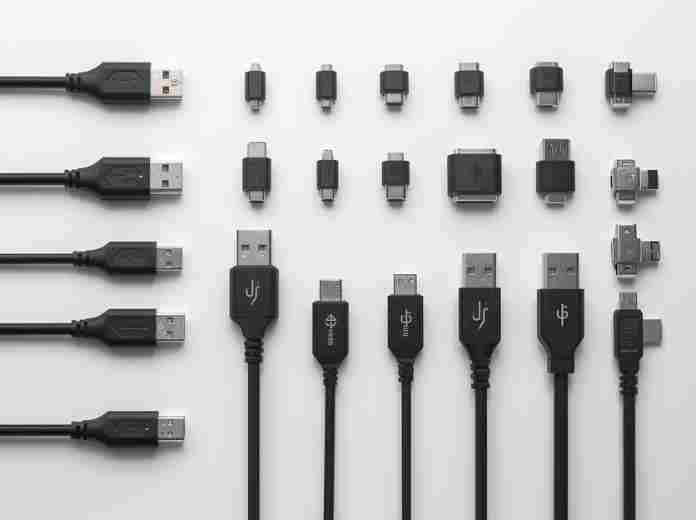
Ever stood in front of your cable drawer, holding a handful of plugs and wondering which one fits your new gadget? You’re not alone. Universal Serial Bus (USB) technology has evolved over 30 years to become the backbone of modern connectivity, powering everything from your phone to your laptop to your printer. But with multiple connector shapes and speed standards, navigating the world of USB can feel overwhelming. This USB connector guide for beginners breaks down everything you need to know to choose the right cable every time.
It has survived not only five centuries, but also the leap into electronic typesetting, remaining essentially unchanged.
Common USB Connector Types Explained
Let’s start with the physical plugs you interact with daily. Each connector type has a unique design, use case, and set of capabilities:
USB-A: The Classic Rectangular Workhorse
The most recognizable USB connector, USB-A features a flat, rectangular shape and a unidirectional design (we’ve all done the “USB flip” trying to plug it in correctly).
- Key Features: Supported across every USB version from 1.1 to 3.2, with speeds ranging from 12 Mbps to 10 Gbps. USB 3.0+ ports often have blue internal plastic to distinguish them from slower USB 2.0 models.
- Common Uses: Found on host devices like computers, game consoles, wall chargers, and hubs. Used for peripherals including keyboards, mice, flash drives, and external storage.
- Compatibility: Works with all USB versions, though speed is limited by the lowest standard in the connection chain.
USB-B: The Peripheral-Specific Square Connector
USB-B has a distinctive square shape with beveled top corners, designed to prevent accidental host-to-host connections that could damage hardware.
- Key Features: Available in USB 2.0 (480 Mbps) and USB 3.0 (5 Gbps) variants, with the 3.0 version being noticeably larger to accommodate extra pins.
- Common Uses: Largely found on stationary peripherals like printers, scanners, audio interfaces, PTZ cameras, and some external hard drives. It’s rarely used on consumer mobile devices.
Mini-USB: The Legacy Compact Connector
Developed in the early 2000s for smaller portable devices, Mini-USB has a small trapezoidal shape and 5 pins supporting USB On-The-Go (OTG) functionality.
- Key Features: Supports USB 2.0 speeds up to 480 Mbps. Deprecated by the USB Implementers Forum (USB-IF) in 2007 in favor of the smaller Micro-USB.
- Common Uses: Found in legacy devices including older digital cameras, GPS units, early MP3 players, and vintage game controllers. Rarely seen on new products today.
Micro-USB: The Former Mobile Standard
Even smaller than Mini-USB, Micro-USB features a thin trapezoidal design and became the universal mobile charging standard for over a decade.
- Key Features: Supports USB 2.0 speeds up to 480 Mbps (with a larger 3.0 variant for external drives) and OTG functionality allowing devices to act as hosts for peripherals.
- Common Uses: Still widely found on budget Android phones, e-readers, power banks, Bluetooth speakers, and older portable electronics. Being gradually phased out in favor of USB-C.
USB-C: The Modern Reversible Universal Connector
Introduced in 2014, USB-C is the newest and most versatile USB connector, designed to replace all older USB types with a single universal standard.
- Key Features: Symmetrical, oval shape that plugs in either way (no more flipping!). Supports all USB standards from 2.0 to USB4 v2, with data speeds up to 80 Gbps and power delivery up to 240W. Can carry data, video (DisplayPort/HDMI via Alt Mode), and power simultaneously.
- Common Uses: Found on almost all new smartphones, modern laptops, tablets, external SSDs, gaming consoles, and peripherals. Mandatory for all small electronics sold in the EU from 2024 onward.
- Important Note: The connector shape does not determine speed. A USB-C cable could be rated for USB 2.0 (480 Mbps) or USB4 (80 Gbps) — always check the cable specifications, not just the plug shape.
USB Connector Types and Version Compatibility
Beyond physical shape, USB performance is defined by the standard version it supports. Each generation delivers faster data transfer speeds and improved power delivery:
USB Version
Release Year
Max Data Speed
Power Delivery
Supported Connectors
Key Use Cases
USB 1.1
1998
12 Mbps
2.5W (5V/0.5A)
USB-A, USB-B
Basic peripherals (mice, keyboards)
USB 2.0
2000
480 Mbps
2.5W (5V/0.5A)
USB-A, USB-B, Mini-USB, Micro-USB, USB-C
Budget devices, basic charging, low-bandwidth peripherals
USB 3.2 Gen 1 (formerly USB 3.0)
2008
5 Gbps
4.5W (5V/0.9A)
USB-A, USB-B, Micro-USB, USB-C
Fast file transfers, external hard drives, webcam connections
USB 3.2 Gen 2 (formerly USB 3.1)
2013
10 Gbps
100W (USB PD)
USB-A, USB-B, USB-C
High-speed data transfer, laptop charging, 4K video output
USB 3.2 Gen 2x2
2017
20 Gbps
100W (USB PD)
USB-C only
External SSDs, high-performance peripherals
USB4 v1
2019
40 Gbps
100W (USB PD)
USB-C only
Thunderbolt 3 compatibility, 8K video output, high-speed data transfers
USB4 v2
2022
80 Gbps
240W (USB PD 3.1 EPR)
USB-C only
Professional video production, fast laptop charging, enterprise storage
USB-A vs USB-C: Which Should You Choose?
The two most common connectors today are USB-A and USB-C, each with distinct advantages:
For new purchases, prioritize USB-C devices and cables — their versatility means they’ll work with all your modern gadgets for years to come.
- USB-A: Best for legacy device compatibility, widely available, and affordable. Limited by its unidirectional design and maximum 10 Gbps speed.
- USB-C: Future-proof, reversible, and supports the fastest speeds and highest power delivery. Can replace multiple ports (power, data, video) with a single connection.
Practical Tips for Choosing the Right USB Cable
With so many options, picking the right cable doesn’t have to be complicated. Follow these guidelines to avoid common mistakes:
1、Match the Connector to Your Device
PortFirst, confirm the physical plug type your device uses (USB-A, USB-C, Micro-USB, etc.). A cable with the wrong connector simply won’t fit.
2、Check Speed Requirements
- For basic charging or connecting low-bandwidth peripherals (keyboards, mice): USB 2.0 is sufficient.
- For transferring large files or connecting external SSDs: Aim for USB 3.2 Gen 1 (5 Gbps) or faster.
- For video output or high-performance applications: Use USB 3.2 Gen 2 (10 Gbps) or USB4.
3、Verify Power Delivery Capabilities
- For charging phones and small devices: 15-27W is usually enough.
- For charging laptops or powering monitors: Look for USB-C cables rated for 65W+ Power Delivery (PD).
- Cables supporting >60W require an e-marker chip to negotiate power safely — always buy certified cables from reputable manufacturers.
4、Avoid Common Cable Mistakes
- Charge-only cables: Cheap cables with no data lines will charge your device but won’t transfer files. Check product descriptions carefully if you need data functionality.
- Speed mismatches: A USB 3.2 SSD will only perform as fast as the cable connecting it. Using a USB 2.0 cable will limit speeds to 480 Mbps.
- Non-compliant cables: Poorly made USB-C cables with incorrect resistors can damage devices. Look for USB-IF certification to ensure safety and compatibility.
- Length limitations: Passive USB 3.2 Gen 2 cables are limited to ~1 meter. Longer runs require active or Thunderbolt-rated cables to maintain speed.
5、Future-Proof Your Cable Collection
Invest in high-quality USB-C cables that support at least 10 Gbps data transfer and 100W PD. These will work with all your current and future devices, eliminating the need to replace cables when you upgrade gadgets.
Common USB FAQs
How many different USB connector types are there?
The five most common types are USB-A, USB-B, Mini-USB, Micro-USB, and USB-C. Specialized variants exist for industrial and internal use, but these five cover 99% of consumer applications.Can I use a USB 3.0 device with a USB 2.0 port?
Yes, all USB versions are backward compatible. The connection will run at the speed of the slowest component in the chain (so your USB 3.0 device will operate at USB 2.0 speeds when connected to a USB 2.0 port).How do I tell if a USB port is 2.0 or 3.0?
USB 3.0 ports often have blue internal plastic, while USB 2.0 ports are usually black or white. Many ports also have a “SS” (SuperSpeed) logo next to USB 3.0+ connections. When in doubt, check your device specifications.What’s the difference between USB-C and Thunderbolt?
Thunderbolt 3/4 uses the USB-C physical connector but adds higher performance capabilities (up to 40 Gbps speed, support for multiple 4K displays, and external GPU connectivity). All Thunderbolt 3/4 ports are USB-C, but not all USB-C ports support Thunderbolt.Do all USB-C cables support fast charging?
No. Basic USB-C cables may only support 15W charging, while high-quality PD-rated cables can support up to 240W. Always check the cable’s power rating before using it to charge high-power devices like laptops.Related OUKETECH resources: custom cable assembly manufacturing; custom wire harness manufacturing.