

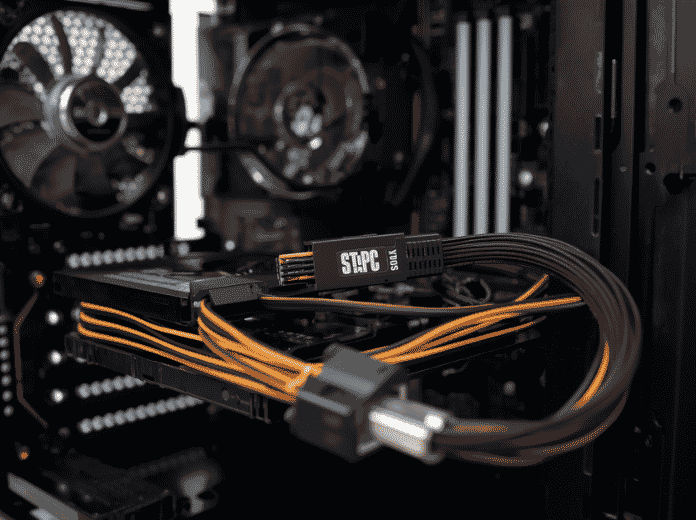
You pop open your desktop case to swap in a new SSD. Between the power supply and the motherboard, you spot a flat, thin cable with a small L-shaped connector — that’s a SATA cable. It’s been the backbone of PC storage connectivity for over two decades, and chances are you’ve plugged one in without giving it a second thought.
But not all SATA cables are created equal. Whether you’re building a home NAS, upgrading a laptop drive, or speccing out storage for an industrial server, understanding what SATA cables do — and how to pick the right one — saves you from bottlenecked speeds and flaky connections.
Table of Contents
- So, What Exactly Is a SATA Cable?
- SATA Generations: From 1.5 Gbps to 6 Gbps
- SATA Cable Types: Data, Power, and eSATA
- SATA vs PATA: Why the Old Standard Had to Go
- SATA vs M.2 and NVMe: Where SATA Stands Today
- How to Choose the Right SATA Cable
- Common SATA Cable Problems (and How to Fix Them)
- FAQ: SATA Cable Questions Answered
So, What Exactly Is a SATA Cable?
Related OUKETECH resources: OEM cable manufacturer.
SATA stands for Serial Advanced Technology Attachment. It’s an interface standard introduced in 2001 that connects storage devices — hard disk drives (HDDs), solid-state drives (SSDs), and optical drives — to a computer’s motherboard.
Before SATA came along, computers used PATA (Parallel ATA), a clunky standard that relied on wide, 40- or 80-wire ribbon cables. SATA ditched the parallel approach for serial communication: sending data one bit at a time over a much thinner cable. The result? Faster speeds, better airflow inside the case, and far simpler cable management.
At its core, a SATA cable does two things: it transfers data between your drive and motherboard, and it delivers power to the drive. These two functions are handled by separate connectors — a 7-pin data connector and a 15-pin power connector — which we’ll break down in detail below.Industry Insight: From a manufacturing standpoint, the shift from PATA’s 40-pin ribbon to SATA’s 7-pin serial design was a game-changer. Fewer conductors mean lower material cost, less signal crosstalk, and easier automated assembly. At OUKETECH, we’ve seen this same principle — doing more with fewer, better-engineered connections — drive innovation across everything from custom cable assemblies to complex automotive wire harness systems.
SATA Generations: From 1.5 Gbps to 6 Gbps
SATA hasn’t stood still. Three major revisions have rolled out since its debut, each doubling the throughput of its predecessor:
| Version | Year | Raw Speed | Real-World Throughput | Key Improvements |
|---|---|---|---|---|
| SATA I (SATA 1.5G) | 2003 | 1.5 Gbps | ~150 MB/s | First-gen serial design, hot-swap support |
| SATA II (SATA 3G) | 2004 | 3.0 Gbps | ~300 MB/s | Native Command Queuing (NCQ), eSATA |
| SATA III (SATA 6G) | 2008 | 6.0 Gbps | ~600 MB/s | Backward compatible, current standard |
Here’s the practical takeaway: SATA III at 600 MB/s is fast enough to saturate most consumer HDDs (which top out around 160–200 MB/s) and entry-level SATA SSDs (typically 500–550 MB/s). If you’re still running a SATA II motherboard from the late 2000s, a SATA III drive will work — but it’ll be capped at 300 MB/s.
Connector compatibility note: All three SATA generations use identical physical connectors. A SATA III cable works fine with a SATA I drive, and vice versa. The bottleneck is always the slower device in the chain.
SATA Cable Types: Data, Power, and eSATA

Not every SATA cable serves the same purpose. Here’s what you’ll encounter in the wild:
SATA Data Cable (7-Pin)
The slim cable most people picture when they think “SATA.” It has a flat 7-pin connector on each end — one plugs into the drive, the other into a SATA port on the motherboard. These cables are typically 30–60 cm long and feature a small locking latch on newer versions to prevent accidental disconnection.
- 7 pins: 2 differential pairs (transmit + receive) + 3 ground pins
- No power delivery — data only
- Locking latch available on most modern cables
SATA Power Cable (15-Pin)
The wider connector that comes from your power supply unit (PSU). Its 15 pins deliver three voltage rails: 3.3V, 5V, and 12V. This multi-voltage design is why SATA power connectors replaced the old 4-pin Molex — modern drives need all three voltages for different internal components.
- 15 pins across 3 voltage groups
- Supports hot-plugging and staggered spin-up (reduces power surge on boot)
- Typically part of a multi-connector daisy chain from the PSU
eSATA (External SATA)
Designed for connecting external hard drives at full SATA speeds — no USB bottleneck. eSATA uses a slightly different connector shape (shielded, with a deeper latch) and supports cable lengths up to 2 meters, compared to the 1-meter practical limit of internal SATA.
The catch: eSATA carries data only — no power. External drives using eSATA still need a separate power adapter, which is one reason USB 3.0 eventually overtook it for external storage.
SATA vs PATA: Why the Old Standard Had to Go
If you built PCs before 2005, you remember PATA (also called IDE) ribbon cables — wide, gray, and impossible to route cleanly. Here’s how the two standards stack up:
| Feature | SATA | PATA (IDE) |
|---|---|---|
| Max Speed | 600 MB/s (SATA III) | 133 MB/s (ATA-133) |
| Cable Width | ~8 mm (thin, flat) | ~50 mm (wide ribbon) |
| Max Cable Length | 1 meter (internal) | 45 cm |
| Devices per Port | 1 (point-to-point) | 2 (master/slave) |
| Hot-Swapping | Yes | No |
| Airflow Impact | Minimal | Blocks airflow significantly |
The master/slave jumper configuration on PATA drives was a constant headache — set it wrong and your system wouldn’t boot. SATA’s point-to-point architecture eliminated that entirely: one port, one drive, no jumpers needed.
SATA vs M.2 and NVMe: Where SATA Stands Today
This is the question every PC builder asks: should I go SATA or M.2?
M.2 is a form factor, not an interface. An M.2 slot can carry either SATA or PCIe (NVMe) signals. Here’s the breakdown:
| SATA III (2.5″ or M.2) | M.2 NVMe (PCIe 3.0 x4) | M.2 NVMe (PCIe 4.0 x4) | |
|---|---|---|---|
| Max Speed | 600 MB/s | ~3,500 MB/s | ~7,000 MB/s |
| Cable Required | Yes (data + power) | No (plugs directly into slot) | No |
| Typical Use | Bulk storage, budget builds, servers | OS drive, gaming, content creation | High-end workstations |
| Cost per GB | Lowest | Mid-range | Premium |
The verdict: For operating systems, games, and active projects, NVMe is the clear winner. But SATA drives still dominate in three scenarios:
- Mass storage — 4TB+ HDDs for media libraries and backups
- Budget builds — SATA SSDs cost significantly less per GB than NVMe
- Servers and NAS — hot-swap SATA drive bays are a mature, reliable standard
SATA isn’t dead. It’s just found its lane.
How to Choose the Right SATA Cable
Not all SATA cables deliver the same experience. Here’s what to look for:
1. Locking vs Non-Locking Connectors
Cables with a small metal locking clip on the connector won’t wiggle loose over time — important if you move your PC or work in a high-vibration environment. For most desktop builds, locking connectors are worth the small premium.
2. Cable Length
Shorter is better for signal integrity. Stick to 30–50 cm for internal drives. Going beyond 60 cm increases the risk of data errors, especially at SATA III speeds. If you need a longer run, look for cables with better shielding — or consider eSATA for external use.
3. Build Quality
Cheap SATA cables use thin-gauge conductors and flimsy connectors. The failure mode is subtle: your drive still shows up, but you get intermittent CRC errors and degraded performance. Look for:
- Gold-plated or nickel-plated contacts (corrosion resistance)
- Strain relief at connector joints
- Properly molded (not crimped) connector housings
4. Right-Angle Connectors
If your drive bay is tight on clearance, right-angle SATA connectors (90-degree bend) can save you from kinking the cable. They come in “left” and “right” orientations — check which direction your drive’s port faces before buying.Industry Insight: In high-reliability applications like medical imaging or industrial automation, SATA cable quality isn’t just about speed — it’s about uptime. A single intermittent connection in a CT scanner’s storage array can cascade into system-wide errors. That’s why sectors like medical wire harness manufacturing apply the same zero-defect testing standards to every connector and termination point.
Common SATA Cable Problems (and How to Fix Them)
Drive Not Detected
- Reseat both ends of the data cable — the click should be firm
- Try a different SATA port on the motherboard
- Swap the cable; data cables fail more often than you’d think
Slow Transfer Speeds
- Check that you’re using a SATA III (6 Gbps) port, not SATA II
- Replace cables longer than 60 cm with shorter ones
- Verify the drive isn’t running in IDE/legacy mode in BIOS
Intermittent Disconnects
- This almost always points to a loose connector or a failing cable
- Replace non-locking cables with locking versions
- Check for sharp bends — SATA cables don’t handle tight folds well
FAQ: SATA Cable Questions Answered
Can I use the same SATA cable for HDD and SSD?
Yes. The physical connector is identical. Both 2.5″ SSDs and 3.5″ HDDs use standard SATA data and power connectors.
Do I need a special SATA III cable?
No. Standard SATA cables are rated for 3 Gbps minimum and handle 6 Gbps without issues in practice. There’s no such thing as a “SATA III-only” cable — the connector spec hasn’t changed since SATA I.
What’s the difference between SATA and SAS?
SAS (Serial Attached SCSI) uses a similar L-shaped connector but with an extra bridge connecting the data and power segments. A SATA drive works when plugged into a SAS controller, but a SAS drive won’t work on a SATA controller. For enterprise storage arrays that mix drive types, manufacturers like Intel recommend keeping SAS and SATA on separate backplanes.
Can I convert SATA to USB?
Yes. SATA-to-USB adapters are widely available and useful for connecting internal drives externally — great for data migration or drive wiping.
Why does my SATA power cable have so many connectors on one wire?
That’s a daisy-chain design from your PSU. It lets you power multiple drives from a single PSU rail. Just make sure the total power draw across the chain doesn’t exceed the PSU’s per-rail rating.
The Bottom Line
SATA cables are the quiet workhorses of PC storage. They’ve outlasted PATA, coexisted with SAS, and adapted to the NVMe era by finding their niche in bulk storage and budget-friendly builds.
Whether you’re wiring up a home server or sourcing components for a production line, the principles are the same: match the right cable to the job, don’t cheap out on build quality, and keep those runs short. In applications where reliability is non-negotiable — from industrial wire harness systems to data center storage arrays — every connection counts.
Related Pages on OUKETECH
- Custom Cable Assemblies — High-quality custom cable manufacturing for consumer and industrial applications
- Automotive Wire Harness — Durable, safety-certified wiring solutions for vehicles and EV systems
- Medical Wire Harness — Precision wire harness assemblies meeting strict medical industry standards
- Industrial Wire Harness — Reliable harness solutions for machinery, automation, and harsh environments