

You’ve got a rectangular USB port on your laptop. Someone tells you it’s “USB 3.0.” Someone else calls it “USB-A.” Are they talking about the same thing? Nope. And mixing them up leads to buying the wrong cables, wondering why your transfer is crawling, and a lot of unnecessary frustration.
Here’s the short version: USB-A is a physical shape. USB 3.0 is a speed standard. One describes what the plug looks like. The other describes how fast data moves through it. They live in different categories.
Let’s break that down.
USB-A Is a Shape, Not a Speed
Related OUKETECH resources: OEM cable manufacturer.
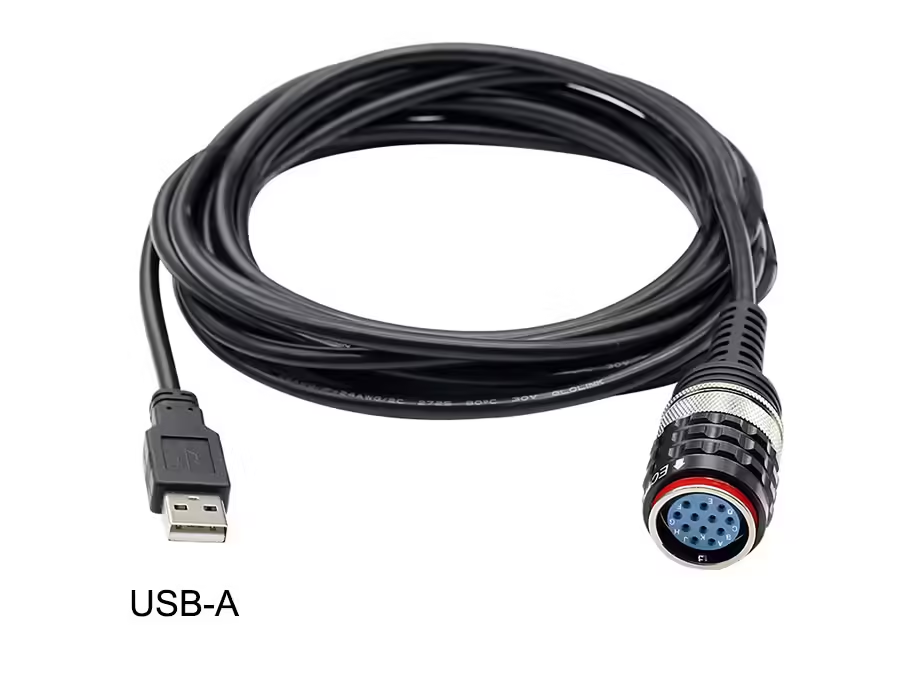
USB-A is the flat, rectangular connector you’ve plugged in a thousand times. It’s on your computer, your charger, your printer, your game console. It debuted back in 1996 with USB 1.0 and has been the default connector shape for nearly three decades.
Here’s what trips people up: USB-A says nothing about performance. A USB-A port on one computer might transfer data at 480 Mbps (USB 2.0). The identical-looking USB-A port on another computer might hit 5 Gbps (USB 3.0). Same shape, wildly different speeds.
Think of USB-A as the door. USB 3.0 is how fast things walk through it.
USB 3.0 Is a Speed Standard, Not a Shape
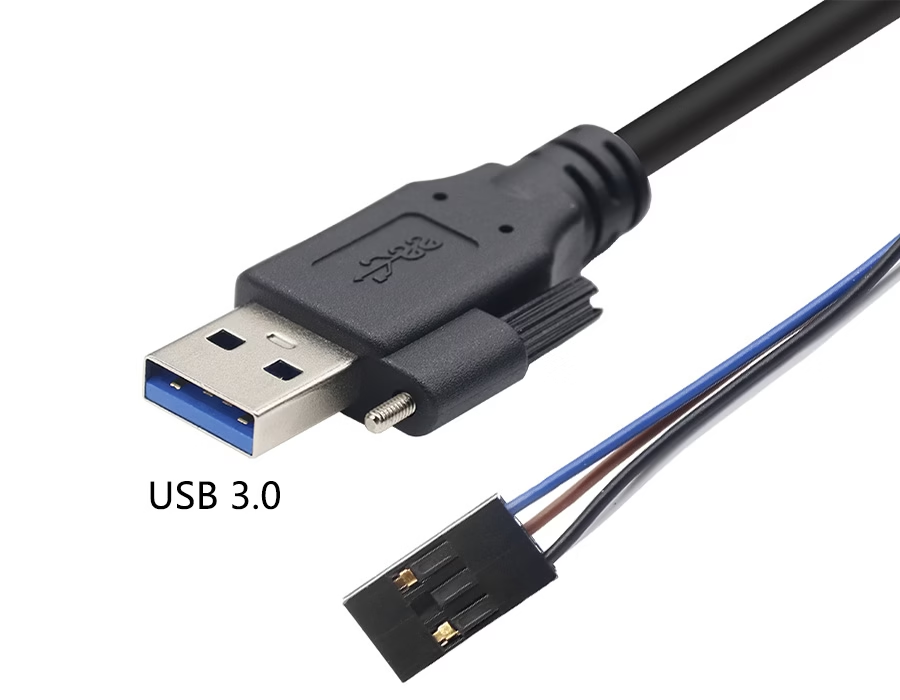
USB 3.0 — also called “SuperSpeed USB” — launched in 2008. Its headline feature: data transfers up to 5 Gbps. That’s roughly 10 times faster than USB 2.0’s 480 Mbps.
To hit those speeds, USB 3.0 added five extra pins inside the connector (9 pins total, vs. 4 in USB 2.0). It also bumped up power delivery — 900 mA instead of 500 mA — which means it can charge devices faster and power hungrier peripherals like external hard drives without needing a separate power brick.
And here’s the critical part: USB 3.0 can use different connector shapes. It most commonly appears as USB-A (the rectangle), but it also comes in USB-B, Micro-B, and USB-C. The speed standard and the physical shape are independent choices.
Why People Mix Them Up
Because USB 3.0 usually wears a USB-A costume.
When USB 3.0 first hit the market, manufacturers kept the familiar rectangular USB-A shape but upgraded the internals. So you’d pick up a cable, see the same old plug, and assume nothing changed. But under the hood, it was a completely different animal.
Good analogy: same car body, completely different engine. A Toyota Camry with a V6 looks identical to one with a four-cylinder from the outside. You only notice the difference when you hit the gas.
How to Tell Them Apart in 3 Seconds
Don’t guess. Look.Three visual clues for USB 3.0:
1. Blue insert — The plastic piece inside the port or plug is blue (USB 2.0 uses black or white).
2. “SS” marking — Look for “SS” (SuperSpeed) printed next to the port or on the cable.
3. Extra pins — If you peek inside a USB 3.0 Type-A plug, you’ll see five additional contact pins in the back, behind the standard four.
That’s it. Blue + SS = USB 3.0. Black/white + no SS = USB 2.0. No manual required.
What Happens When You Mix Them
USB is backward compatible, which is both a blessing and a source of confusion.
Plug a USB 3.0 device into a USB 2.0 port? It works — but at USB 2.0 speed (480 Mbps max). Plug a USB 2.0 device into a USB 3.0 port? Also works — still at USB 2.0 speed. The rule is simple: the slowest link in the chain sets the speed.
To get full USB 3.0 performance, all three pieces need to support it: the host port, the cable, and the device. One weak link and you’re back to 2.0 speeds.
USB Versions Cheat Sheet
| Version | Max Speed | Year | Common Connectors | Port Color |
|---|---|---|---|---|
| USB 2.0 | 480 Mbps | 2000 | USB-A, USB-B, Mini, Micro | Black or White |
| USB 3.0 (3.2 Gen 1) | 5 Gbps | 2008 | USB-A, USB-B, Micro-B | Blue |
| USB 3.1 (3.2 Gen 2) | 10 Gbps | 2013 | USB-A, USB-C | Teal or Red |
| USB 3.2 (Gen 2×2) | 20 Gbps | 2017 | USB-C only | Varies |
| USB4 | 40-80 Gbps | 2019-2022 | USB-C only | Varies |
Notice the pattern: from USB 3.2 onward, USB-C becomes mandatory. The rectangular USB-A shape tops out at 10 Gbps (USB 3.1). If you want 20 Gbps or more, you need USB-C.
Which One Do You Actually Need?
For keyboards, mice, printers, and basic peripherals: USB 2.0 is fine. These devices send tiny amounts of data. Paying for USB 3.0 here is wasted money.
For external SSDs, large video files, high-res webcams, or regular backups: get USB 3.0 or higher. The speed difference is real — copying a 50 GB file over USB 2.0 takes about 15 minutes. Over USB 3.0, it takes under 2 minutes.
For monitors, docking stations, or future-proofing: look for USB-C with USB 3.2 or USB4. These handle video output, high-wattage charging, and blazing data speeds through a single cable.
One more thing: the cable matters as much as the port. A cheap, unmarked cable might only support USB 2.0 speeds even if both your computer and device are USB 3.0. When in doubt, look for the blue insert or the SS logo on the cable itself.
If your work involves industrial equipment, automotive systems, or medical devices, cable quality becomes even more critical. At OUKETECH, we manufacture custom wire harnesses and cable assemblies that meet strict performance specs — because in a factory or a hospital, a cable failure isn’t just annoying, it’s expensive. Our automotive wiring harnesses and industrial wire harness solutions are built for environments where standard off-the-shelf USB cables won’t cut it.
FAQ
Can I plug a USB 3.0 device into a USB 2.0 port?
Yes. It will work, but only at USB 2.0 speed (480 Mbps). The device won’t be damaged — it just won’t perform at its full potential.
Is every blue USB port USB 3.0?
Almost always, yes. Blue is the industry-standard color code for USB 3.0 (SuperSpeed). Some manufacturers use red or teal for USB 3.1, but blue consistently means 5 Gbps USB 3.0.
Does USB-A support USB 3.0 speeds?
It can, but it depends on the specific port. A USB-A port wired for USB 3.0 will deliver 5 Gbps. A USB-A port wired for USB 2.0 will max out at 480 Mbps. The shape alone tells you nothing — you need to check the color or labeling.
What does the “SS” on my USB port mean?
SS stands for SuperSpeed. It’s the official USB-IF logo for USB 3.0 and above. If you see “SS” next to a port, that port supports at least 5 Gbps. “SS 10” means 10 Gbps (USB 3.1).
Can a USB 3.0 cable charge my phone faster?
Yes, but only if both the charger and the phone support the higher power output. USB 3.0 delivers up to 900 mA vs. USB 2.0’s 500 mA. For modern fast-charging standards (USB PD, Quick Charge), you’ll typically want USB-C anyway.
Bottom line: next time someone asks if USB-A and USB 3.0 are the same, you’ve got the answer. One’s a shape. The other’s a speed. They overlap constantly, which is why the confusion exists — but now you know where to look.
Related OUKETECH resources: custom cable assembly manufacturing.